
Getting started with the Thomson 585v7
Your hardware pack contains:
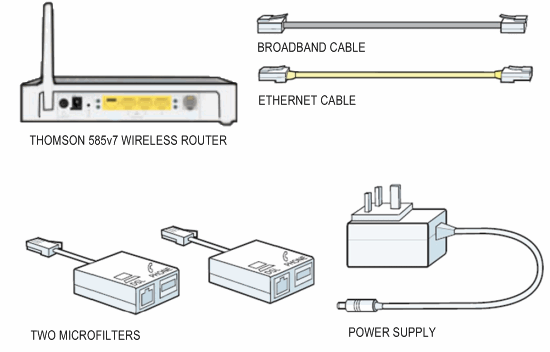
Setting up your Thomson 585v7 Router
1. Plug one of the microfilters into your telephone socket. You'll need one microfilter for each device that uses your telephone line (Sky, fax, additional handsets). Should you require additional microfilters, please contact our support team.
2. Plug the grey broadband cable into the microfilter socket marked DSL.
3. Plug the other end of the cable into the DSL socket on the back of the router.
4. If you've got a 2-part power supply, clip the pins onto the adapter.
5. Connect the power supply and switch the router on with the power button at the back.
6. The Power light will be red at first and the Broadband light will flash. Wait until they stop flashing and turn green before moving on to the next section.
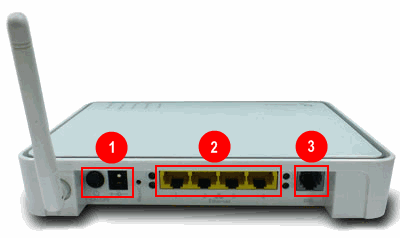
- DSL socket
- Ethernet socket
- Power socket and switch
Now it's time to connect the router to your computer.
You can use either Ethernet or Wireless, choose one of these and follow the steps below.
Ethernet
1. Plug the yellow Ethernet cable into one of the 4 available Ethernet ports on the back of your router.
2. Plug the other end of the Ethernet cable into your computer's Ethernet port.
3. Your computer is now connected to the network.
Wireless
If you're using a Thomson TG123g Wireless Adapter to connect to your wireless network, follow one of the guides below:
- Installing the Thomson TG123g - Windows XP
- Installing the Thomson TG123g - Windows Vista
- Installing the Thomson TG123g - Mac OS X
If you're using a different wireless adapter:
1. Make sure that your wireless adapter is installed and working properly.
2. Use your wireless adapter's connection utility, or from My Network Places select Connect to a network.
3. Your network will be listed as the SSID shown on the bottom of the router. Use the WPA PSK key that's also shown on the bottom of the router to connect to it.
If you experience any problems with your Thomson 585v7, please contact Madasafish Technical Support.
Has this page helped you solve your problem? Your feedback helps us to improve the help we provide.
Rate this page : 


Please note: We cannot reply to individual feedback through Rate My Page. If you need more help with a problem please use Contact Us.


 : General Information
 : Planned Maintenance


