
Checking your settings - Apple Mail
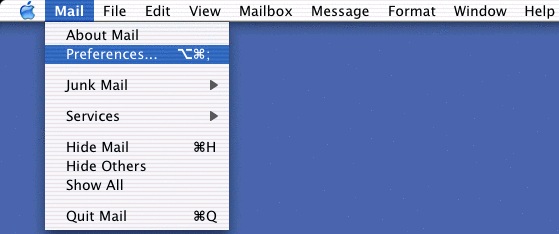
Open Mail, click on the Mail menu, then on Preferences.
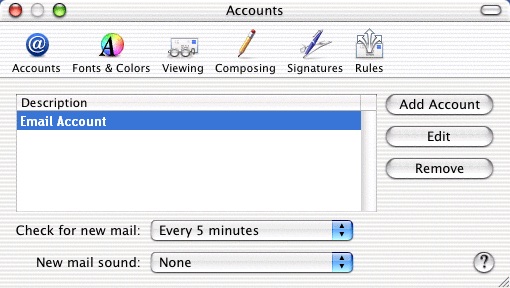
Make sure the window is on the Accounts section. Highlight your Madasafish mail account (sometimes called "mail.madasafish.com") and then click on Edit.
Make sure that your name is in the Full Name section, and that your email address is in the Email Address section (making sure it is in lower case).
The incoming and outgoing mail server addresses should be:
- Incoming Mail(POP3): mail.madasafish.com
- Outgoing Mail(SMTP): mail.madasafish.com
Make sure that User Name contains your username and that Password contains the password you use to connect to Madasafish (this is case sensitive, and the username must also be in lowercase).
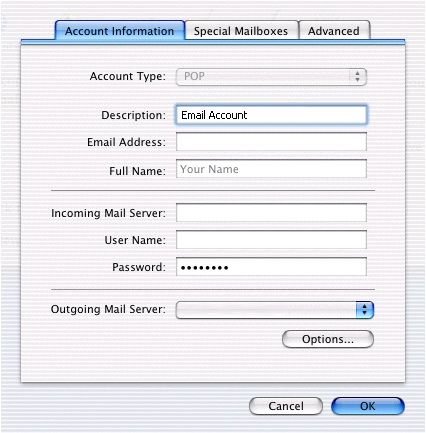
If Outgoing Mail Server is not shown as mail.madasafish.com, use the double arrows to change it.
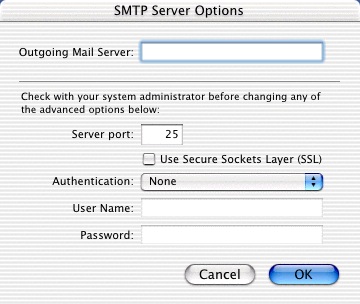
If mail.madasafish.com isn't listed, click on Add Server.
Enter the Outgoing Mail Server name as mail.madasafish.com, click OK, click on the double arrows, select mail.madasafish.com and press OK.
Has this page helped you solve your problem? Your feedback helps us to improve the help we provide.
Rate this page : 


Please note: We cannot reply to individual feedback through Rate My Page. If you need more help with a problem please use Contact Us.
People who read this article also found these useful:
Creating your account - Outlook Express 4.5


 : General Information
 : Planned Maintenance


